The Login That Makes You Finally Do Something About Passwords
It is late, your new phone is ready, and the one account you need most wants a password you cannot remember. The old laptop has it saved somewhere. Maybe the browser knows it. Maybe it is on a note in a drawer. You try the usual few variations, then begin the password-reset dance.
That is often when people start looking at a password manager. This guide is for someone who is curious about KeePassXC but does not want a lecture or a maze of cryptography settings. We will install it, create a vault, add a fictional login, optionally connect a browser, and—most importantly—make a backup that can be opened.
KeePassXC takes a different route from a password manager that creates an
account and syncs everything through its own service. It keeps your credentials
in an encrypted .kdbx database file that you control. That can feel
refreshingly simple. It also means you are responsible for remembering the
master password, choosing where the file lives, and keeping recoverable copies.
If you would rather compare hosted services first, see our guide to the best password managers. This one is a walkthrough, not a ranking.
A note on the screenshots: The KeePassXC interface screenshots below come from the project's official documentation repository. They show KeePassXC's example interface and sample entries, not a live account or our own test vault. Menu labels may change between releases.
Before You Install: Is a File-Based Vault Your Style?
KeePassXC may be a good fit if you want a local encrypted file, do not want to create a vendor account just to store passwords, and are comfortable making backups. It works on Windows, macOS, and Linux.
The trade-off is worth saying plainly: the desktop app does not set up
automatic account-based sync for you. You decide if the .kdbx file stays on
one computer or is synchronized with a separate service. You also decide what
to do if the computer or storage device fails.
There is no support desk that can reset the vault's master password. That is part of how an encrypted vault protects you, but it makes a recovery plan essential. If you want a service to handle device syncing and recovery workflows, compare other managers before migrating everything.
Install KeePassXC From the Official Source
Go to the KeePassXC downloads page. As of November 17, 2026, it lists version 2.8.0; use the current release shown there rather than an old installer link copied from a guide.
Windows 10 or 11: choose the appropriate installer for your PC, or use the official
wingetpackage:winget install -e --id KeePassXCTeam.KeePassXCmacOS: download the installer for your Mac from the official page, or use the listed Homebrew Cask:
brew install --cask keepassxcLinux: follow the current Linux options on the official download page. KeePassXC lists Flathub and distribution-specific packages; choose the supported option for your distribution.
Avoid third-party download sites. KeePassXC also publishes instructions for verifying release signatures; that is a useful extra check if you are comfortable comparing signatures.
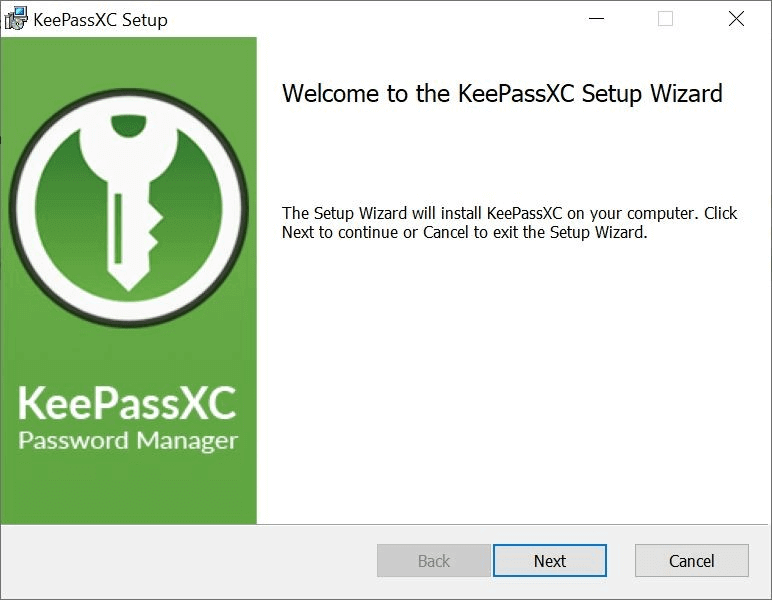
Official KeePassXC installer screenshot. Interface image from the Getting Started documentation source.
Create Your First Vault
Open KeePassXC and choose Create new database. Give the database a simple name, such as “Personal passwords.” The name and location help you find the file later; they are not a substitute for protecting its contents.
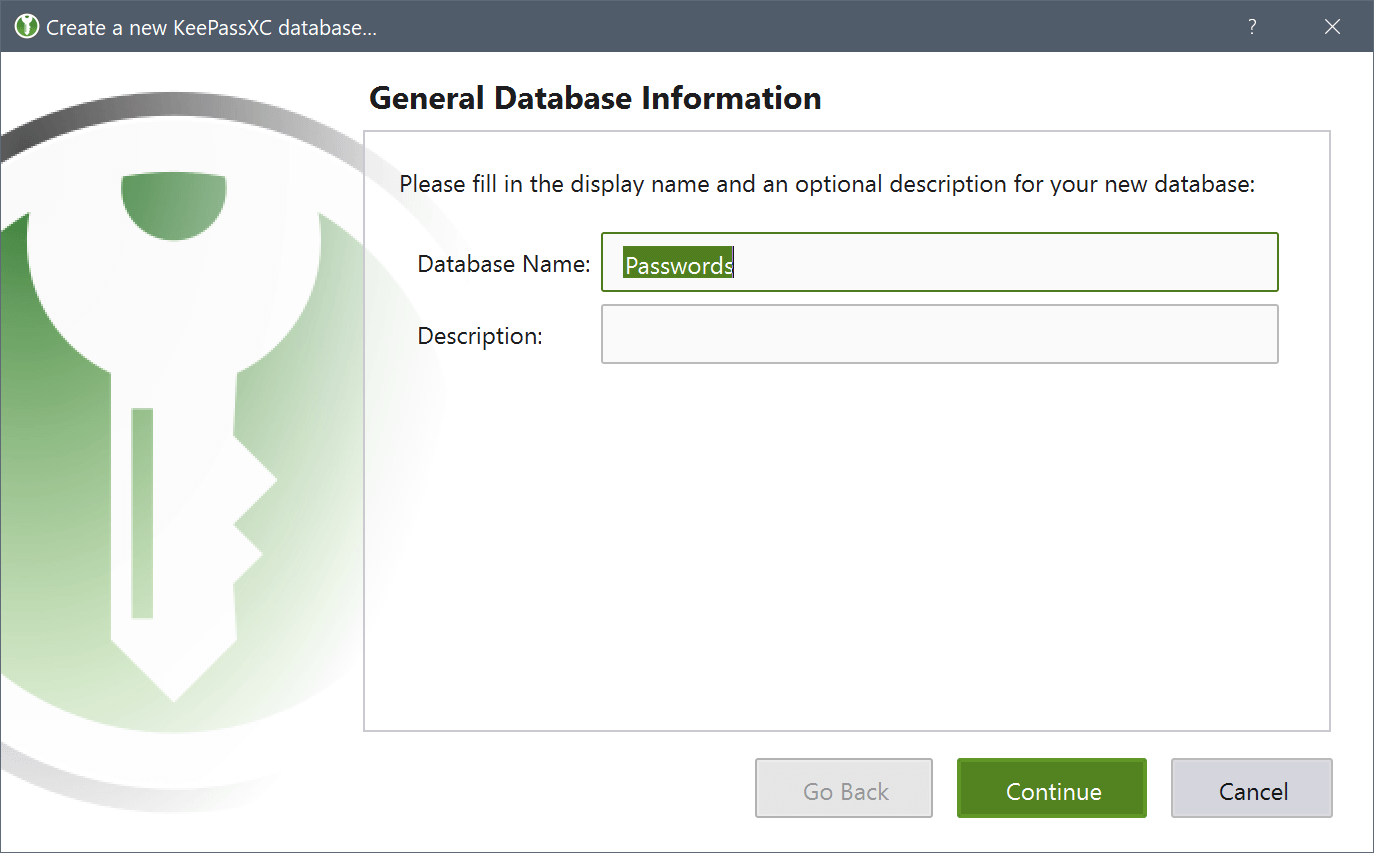
The database setup screen from KeePassXC's official documentation.
The next screen is for encryption settings. The default KDBX 4 format and settings are a sensible starting point for a new vault. KeePassXC's guide recommends an encryption/decryption time of around one second. In practice, the exact unlock time depends on your hardware, and an older or slower phone may take longer. Avoid changing advanced settings unless you know why you need to.
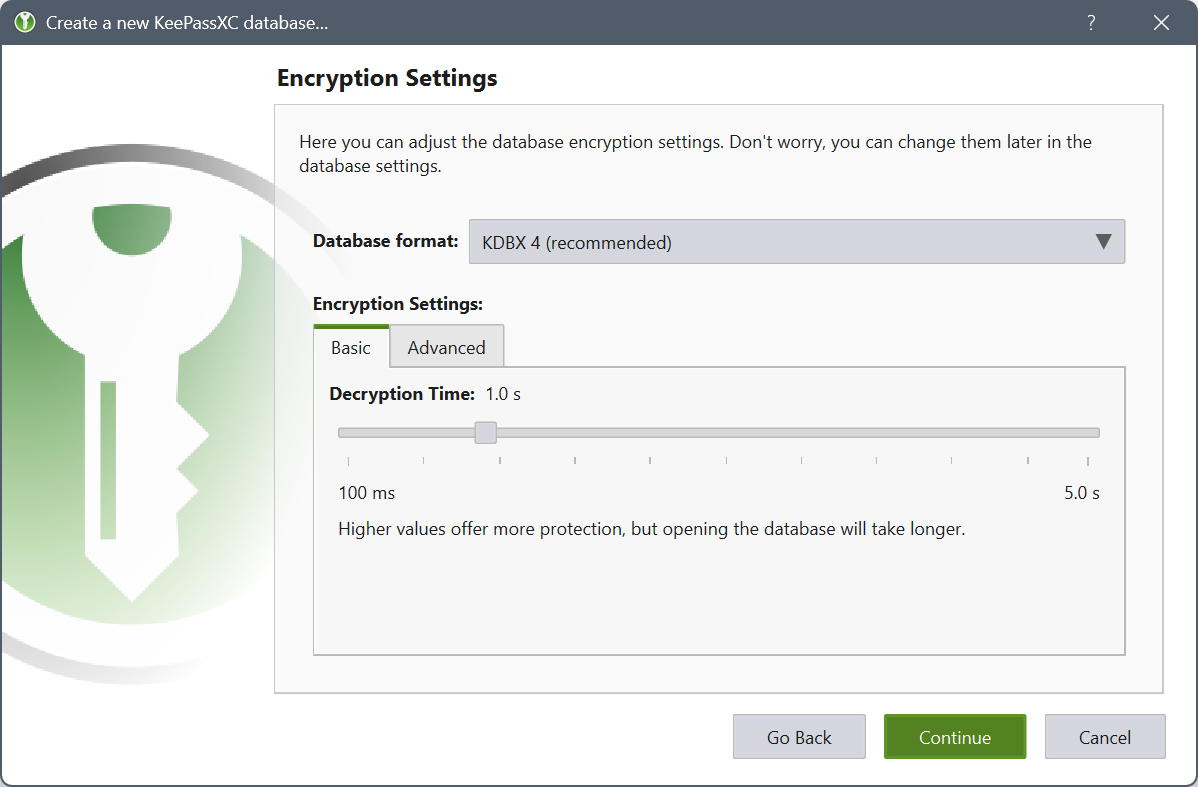
The screenshot shows KDBX 4 and a one-second decryption time; use the current recommended defaults shown in your version.
Now set the master password. This is the one password you must be able to remember or safely retrieve. Make it unique and long; a passphrase made from random words is often easier to type and remember than a short, complicated string. Do not reuse your email password, and do not use the example in this article as your own password.
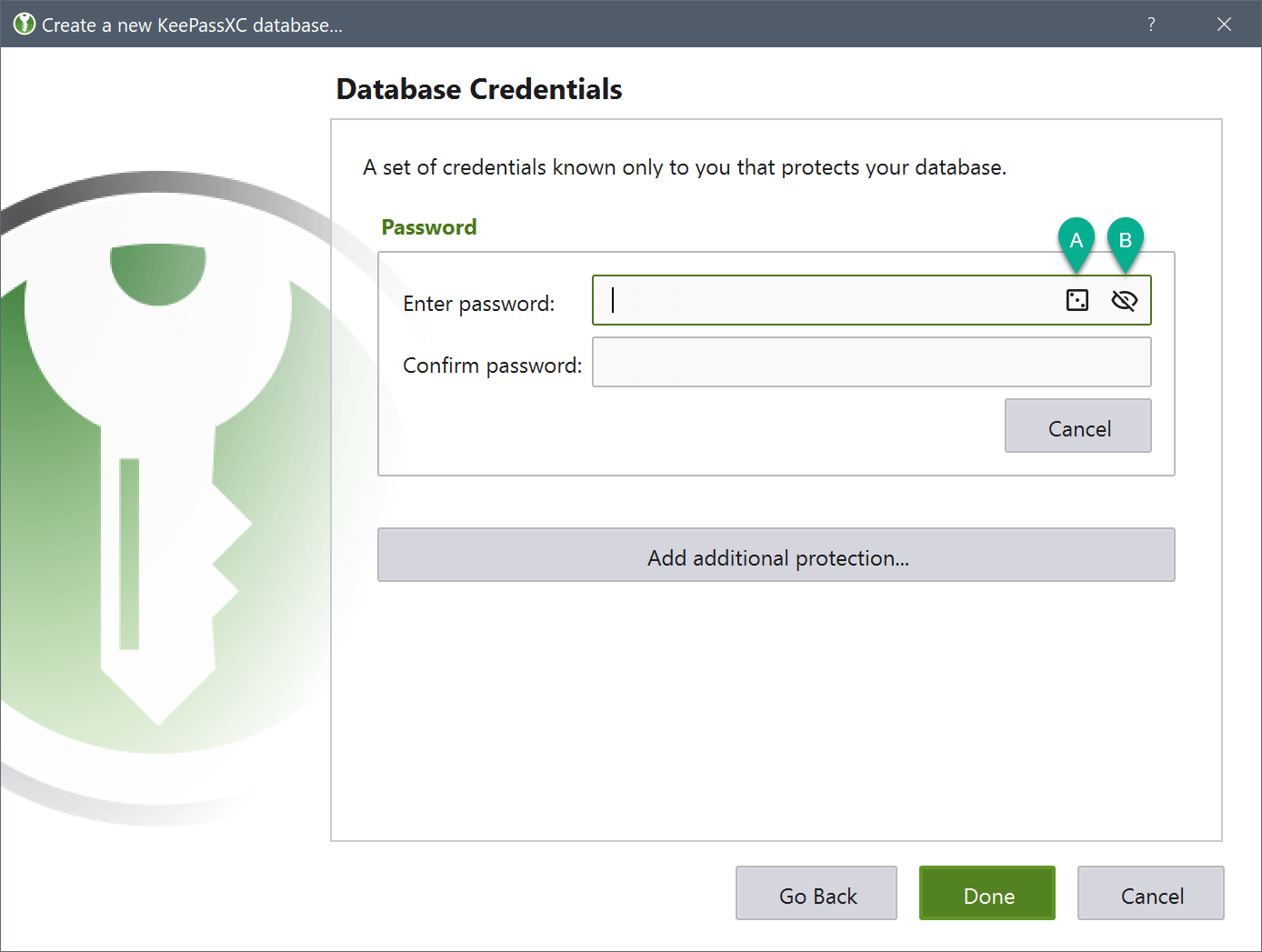
This official screenshot uses an empty password field. Never send anyone a screenshot of your real setup screen with a visible master password.
KeePassXC also offers an Add additional protection option for credentials
such as a key file. It is optional. If you add a key file, it becomes required
to open the vault; losing it can lock you out. Keep it separate from the
database, and make a protected backup of it. Do not store the only copy beside
the .kdbx file and assume that the pair is still a useful two-part secret.
Choose a location and save the vault. You now have a file ending in .kdbx.
That file is encrypted while stored, but the master password is still the key
to your access. KeePassXC cannot reset it for you.
Add One Login, Then Make the Rest of Your Life Easier
Start with an account you use often—your email account is a useful priority because it can be used to reset many other accounts. In KeePassXC choose Entries → New Entry, enter the service name, username, and website, and generate a new unique password. Save the entry, then update the password on the real website.
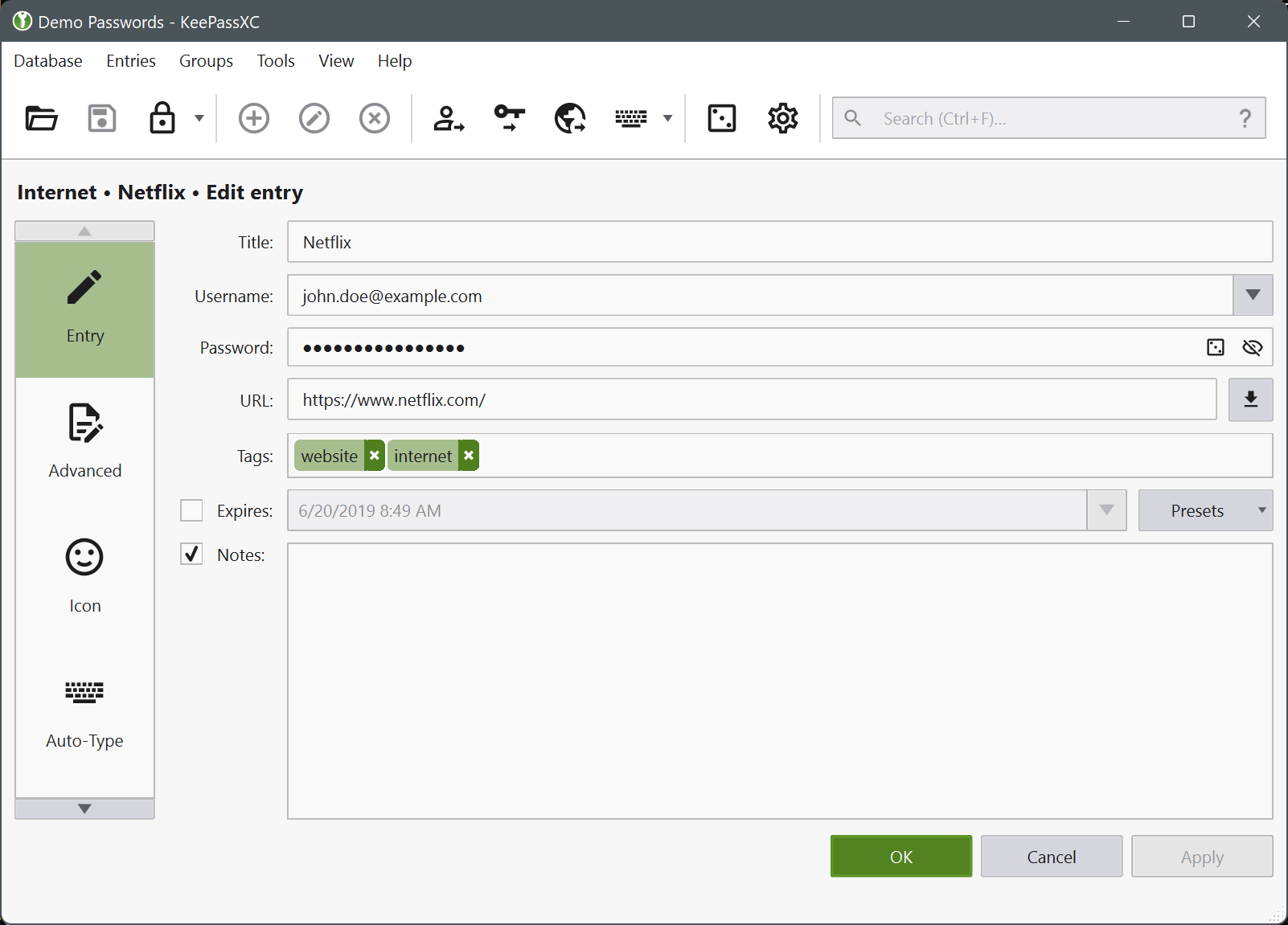
The KeePassXC documentation's sample entry form. The visible example data is fictional; use your own service's real sign-in page when updating a password.
The built-in password generator lets you choose length and character types. When a site rejects a generated password, read its actual rules and adjust the generator for that site rather than weakening every password you make.
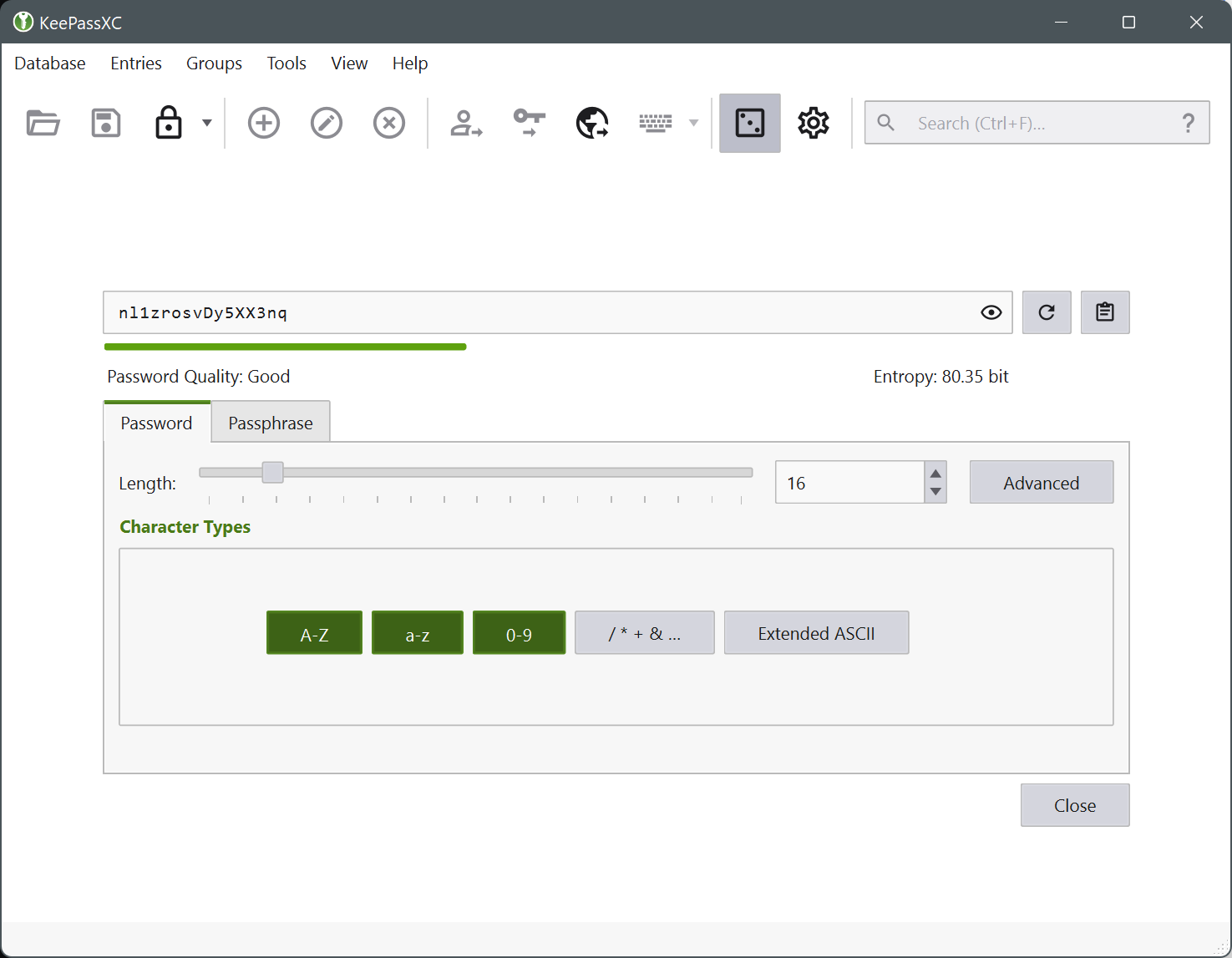
The password generator controls are shown in KeePassXC's official documentation.
If you are moving from another manager, KeePassXC can import supported formats, but exported CSV files are typically readable as plain text. Import the file only on a device you control, do not leave it in Downloads or a shared folder, and remove temporary exports when you are done. Deleting a file is not always the same as securely erasing every copy, particularly on modern storage, so avoid creating extra exports in the first place.
Optional: Connect the Browser Extension Carefully
You can use KeePassXC without a browser extension; copy and paste is an option. If you do want autofill, install KeePassXC-Browser only from the extension store linked by the official KeePassXC browser documentation. Then, in KeePassXC, open Tools → Settings → Browser Integration, enable the browsers you actually use, and follow the extension's connection prompt.
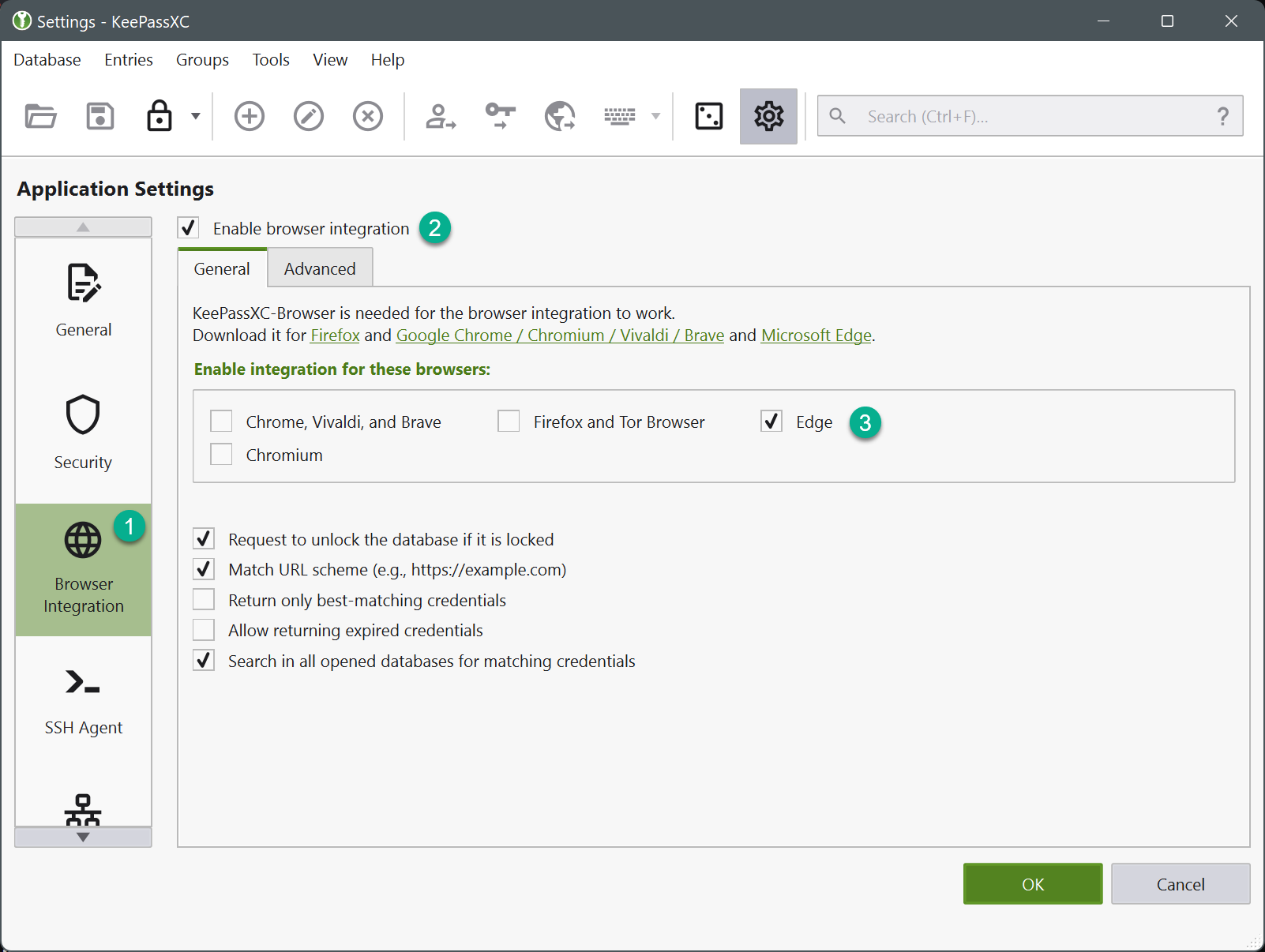
Enable integration only for the browser where you installed the official KeePassXC-Browser extension.
When the extension asks to connect the browser to the database, use a recognizable connection name for your own device. Later, if it asks to share entries with a website, check the domain and selected entry before approving. For a site you do not recognize, choose Deny. You can revisit site-specific permissions in KeePassXC.
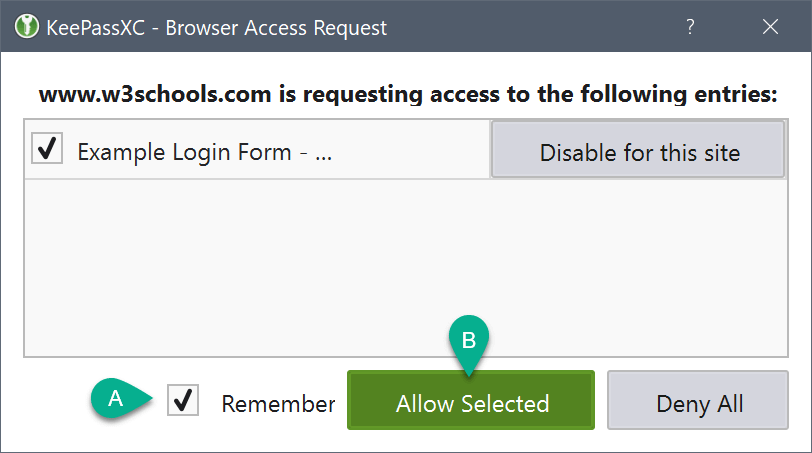
The official example shows an access request for w3schools.com; it is not a request from your browser. Approve only a site and entry you expect.
Browser autofill is convenient, but it adds another component to your setup. Keep both the browser and extension updated. If you prefer fewer moving parts, leave browser integration off and use the desktop app.
Make a Backup Before You Store Every Important Login
Imagine your laptop is stolen tomorrow. The vault is encrypted, but can you open your backup on another computer? This is the question to answer before you migrate dozens of accounts.
With the database open, choose Database → Save Database Backup… and save a dated copy somewhere other than the vault's only location. For example, keep the active file on your computer, a versioned copy in a trusted backup location, and another copy on an external drive that is not always connected. KeePassXC's database remains encrypted in these copies.
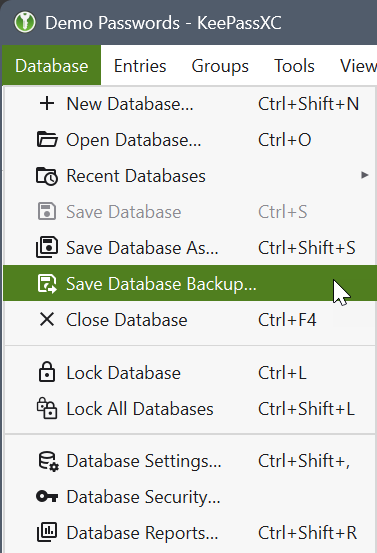
The backup command is in the Database menu in the official KeePassXC screenshot.
A backup routine you can actually follow:
- Keep the master file somewhere you can find it. Avoid scattering
multiple files named
passwords-final-final.kdbxacross your devices. - Make dated backups. Keep more than one recent version so accidental edits or a corrupted sync copy do not overwrite every recovery point.
- Use a second location. A copy on the same laptop does not help if that laptop is lost. Consider an encrypted external drive or a trusted versioned backup service.
- If you use a key file, back it up separately. It is needed alongside the master password and vault file. Protect its backup and know where it is before an emergency.
- Test a restore. Copy a backup to a temporary filename and open that copy in KeePassXC. Confirm it unlocks and contains the entries you expect. Do not test by overwriting your working vault.
KeePassXC notes that a properly protected KDBX database can be stored in a cloud-sync service, since the database is encrypted while stored. A sync provider is still able to delete or replace files, and a stolen encrypted copy can be attacked offline. Use a strong master passphrase and independent versioned backups. To reduce sync conflicts, let one device finish syncing before opening the vault elsewhere; do not make simultaneous edits to separate copies.
The most important rule: a backup is not proven until you have opened a copy. If the master password is wrong or the only key file is missing, a folder full of backups may not help.
Three Small Habits That Keep the Vault Useful
- Lock it when you step away. Set an automatic lock timeout that fits how you use the computer, and lock the database before leaving a shared space.
- Keep the computer updated. An encrypted database does not protect passwords while the vault is unlocked on a compromised or shared device.
- Use the vault to make passwords unique. The point is not to memorize dozens of variations. Let the manager generate them, then use a strong password for the vault itself. Our strong-password guide covers passphrases and account recovery.
Passkeys can reduce how often you need passwords at all. KeePassXC supports passkeys, but setup depends on the website, browser, and current app version. If you are just getting started, first make sure the database and backup routine work; you can explore passkeys later with our passkey setup and recovery guide.
A Calm First-Day Checklist
- Download KeePassXC from the official site.
- Create a KDBX 4 database and choose a unique, memorable master passphrase.
- Leave advanced encryption settings at their defaults.
- Add one important account with a new unique password.
- Save a dated backup in a second location.
- Open a backup copy to make sure it works.
- Write down how you will recover the master password and any key file if your main device is unavailable.
KeePassXC is not magic, and open source is not a substitute for good habits. Its appeal is that the vault is a file you can keep, inspect, and back up yourself. If you make the backup and recovery plan part of setup—not a chore for “someday”—you can use that control without leaving future-you locked out.
Sources and Screenshot Credits
Setup, security, and menu details were checked against KeePassXC's official documentation and release information on November 17, 2026. Features and menu labels may change; follow the current guide for the version you install.
- KeePassXC Getting Started Guide
- KeePassXC User Guide
- Official Downloads
- Verifying Release Signatures
- KeePassXC 2.8.0 release notes
- KeePassXC application logo source
- KeePassXC docs screenshot source at a pinned repository revision
- KeePassXC repository license (GPL-2.0-or-later)
The hero uses the KeePassXC application logo from the official repository. Screenshots in this article are by the KeePassXC Team and are included from the KeePassXC documentation source. These are product documentation images, not original WhiteOrg screenshots.