The Short Answer: Choose One Resolver, Configure the Right Layer
Changing DNS lets you choose which resolver receives domain lookups and can add a layer of protection against domains on malware, phishing, scam, or adult-content blocklists. It does not make browsing anonymous, inspect page content, or guarantee that every harmful site is blocked. Choose a provider and policy for the person and devices you are helping, then test it and keep a way to undo the change.
This guide compares six free resolver services, explains IPv4 and IPv6 DNS settings, and shows where to configure them on macOS, Windows, Android, iPhone, Linux, and home routers. Addresses and menus can change, so check the provider and platform documentation linked below. For a shorter overview, see our free DNS providers comparison.
What DNS Changes—and What It Does Not
The Domain Name System (DNS) translates a hostname such as example.com into the IP address a client can connect to. Your device may receive a resolver automatically from a router or mobile network. When you select a public resolver, you change who receives those lookups and which filtering or validation policy applies.
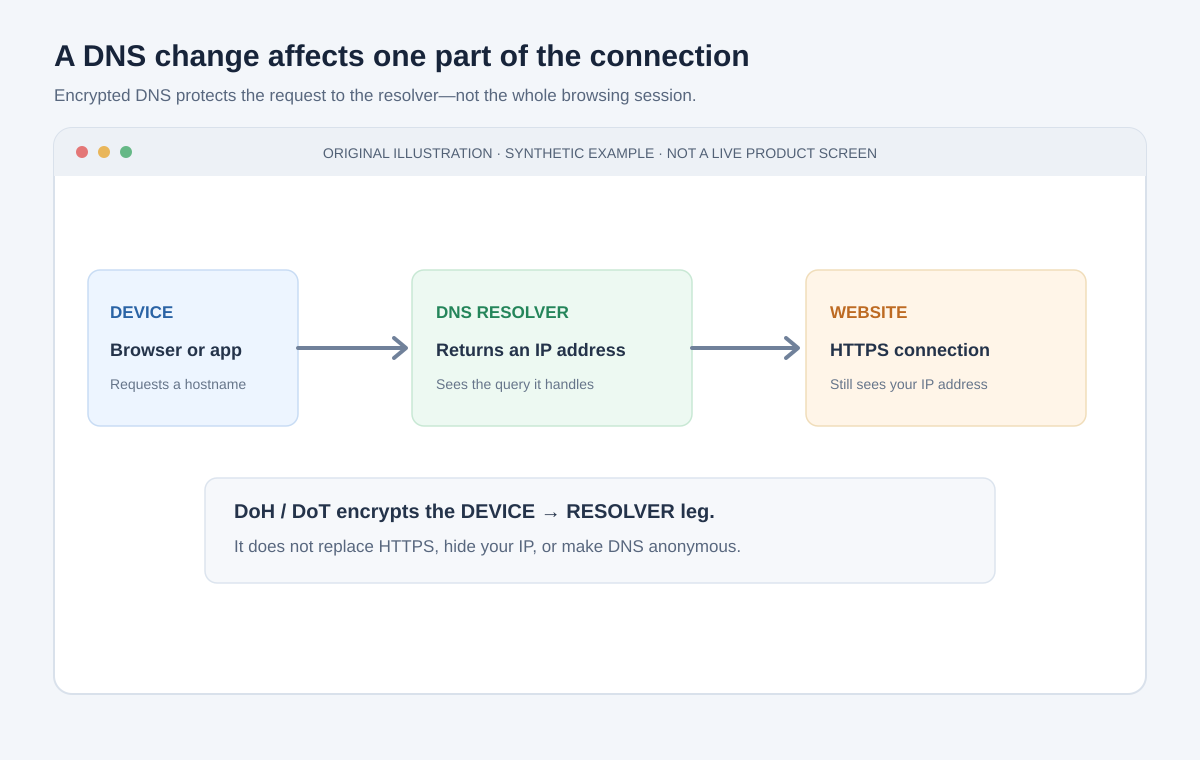
The change is about name resolution, not the whole internet connection:
- DNS is not a bandwidth upgrade. It may affect the time spent looking up a hostname, especially on the first request, but it does not make a large download transfer faster.
- DNS filtering blocks names that match a policy or threat list. It does not inspect every page, remove all advertising, or guarantee that a site is safe.
- DoH and DoT encrypt DNS traffic from your device to the configured resolver. They do not encrypt the rest of an app's connection; HTTPS does that between your browser and a website.
- DNSSEC helps validate that DNS data has not been altered in certain ways. It is not encryption and does not hide what names you request.
- A VPN routes traffic through a VPN provider. Depending on the VPN, it may also set its own DNS resolver and override system or router choices.
- A resolver can still see the query it handles. Encryption protects the path to the resolver; it does not make the resolver unable to read the request.
This is a trust choice. Review the provider's current privacy policy and service terms, decide whether its filtering is suitable, and avoid treating the phrase “private DNS” as a promise of anonymity. A provider may use “private DNS” to mean an encrypted transport, while Android uses Private DNS as the name of its system DoT setting.
Six Free DNS Providers Compared
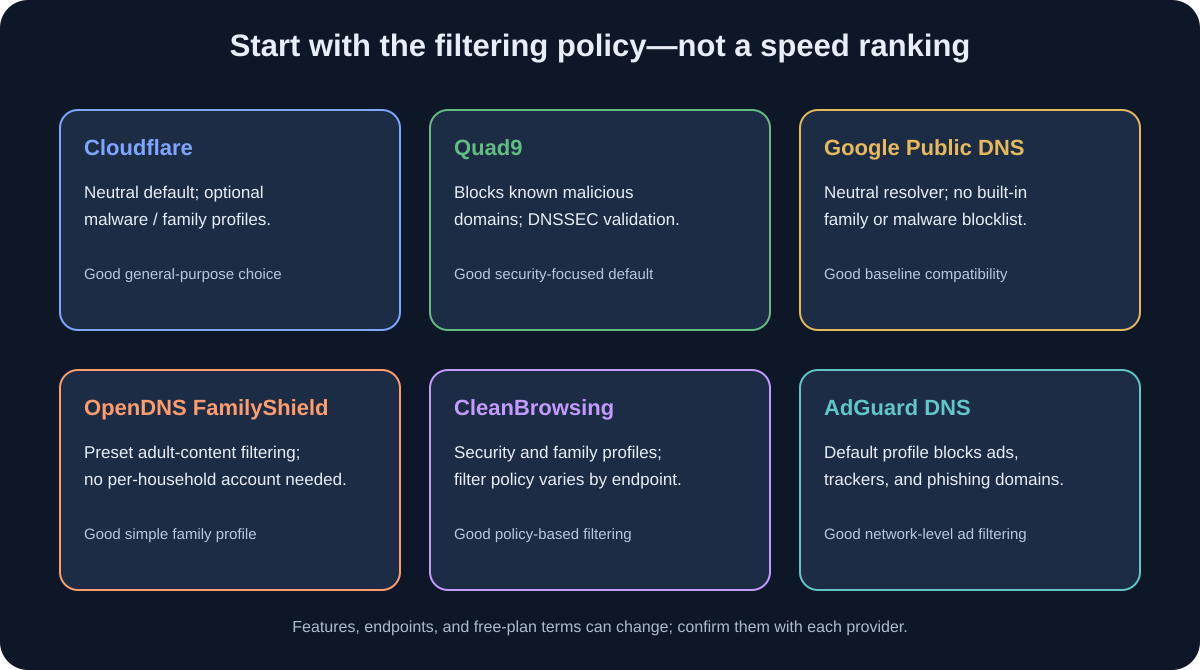
“Best” depends on filtering, transport support, performance from your location, and the provider you are willing to trust. Do not rank providers by a universal speed claim: anycast routing, ISP peering, the current network path, and caching affect results. A resolver that is fastest for a benchmark site or another city may not be fastest for you.
| Provider / profile | Example IPv4 addresses | Main strengths | Trade-offs |
|---|---|---|---|
| Cloudflare 1.1.1.1 standard | 1.1.1.1, 1.0.0.1 |
Neutral, unfiltered lookups; optional malware and family variants; DoH/DoT support | Standard profile does not filter; separate profiles have different IPs |
| Quad9 security | 9.9.9.9, 149.112.112.112 |
Blocks domains associated with malware and other threats; DNSSEC validation; DoH/DoT | Can block a domain you need; choose its documented profile consistently |
| Google Public DNS | 8.8.8.8, 8.8.4.4 |
Large, general-purpose resolver; DoH and DoT; useful unfiltered comparison | No built-in family or malware-blocking profile; review Google's published logging practices |
| Cisco OpenDNS FamilyShield | 208.67.222.123, 208.67.220.123 |
Preset family filtering without configuring a personal category list | Less customizable in the preset service; not equivalent to a full parental-control product |
| CleanBrowsing Family Filter | 185.228.168.168, 185.228.168.169 |
Family-focused policy including adult-site filtering and SafeSearch enforcement; DoH/DoT options | More restrictive than a neutral resolver; verify the exact profile before selecting it |
| AdGuard DNS default | 94.140.14.14, 94.140.15.15 |
Blocks many ad, tracker, and phishing domains; offers separate family and non-filtering profiles | Some ads or app features may stop working; DNS filtering is not a full content blocker |
These are provider examples, not an endorsement or a guarantee of current service terms. Check the linked official setup pages before use, particularly if you need IPv6 or an encrypted endpoint.
IPv4 vs. IPv6 DNS: When to Configure Both
IPv4 and IPv6 are two ways devices communicate across IP networks. A modern home connection may use both at the same time (dual stack). The DNS resolver address is also an IP address, so the system can reach a resolver over IPv4, IPv6, or both, depending on what the network and device support.
The important distinction: an IPv4 DNS server can return an IPv6 (AAAA) address for a website, and an IPv6 DNS server can return an IPv4 (A) address. The protocol used to contact the resolver does not determine the protocol used to reach the website.
If you change only the IPv4 DNS server while the router continues advertising an ISP resolver through IPv6, some queries may still go to that IPv6 resolver. Results can then differ by connection or device, and a DNS filter may be bypassed. For consistent filtering and resolver choice, configure matching endpoints for both families when:
- your network has working IPv6;
- the provider publishes IPv6 addresses for the same filtering profile; and
- the device or router lets you set those addresses.
If the provider or network does not support IPv6, do not invent an address or enter an unrelated resolver as a substitute. IPv4-only DNS can still resolve IPv6-enabled websites; the remaining issue is whether another IPv6 DNS path is active.
| Provider profile | IPv4 pair | IPv6 pair |
|---|---|---|
| Cloudflare malware blocking | 1.1.1.2, 1.0.0.2 |
2606:4700:4700::1112, 2606:4700:4700::1002 |
| Cloudflare malware + adult-content blocking | 1.1.1.3, 1.0.0.3 |
2606:4700:4700::1113, 2606:4700:4700::1003 |
| Quad9 security | 9.9.9.9, 149.112.112.112 |
2620:fe::fe, 2620:fe::9 |
| Google Public DNS (unfiltered) | 8.8.8.8, 8.8.4.4 |
2001:4860:4860::8888, 2001:4860:4860::8844 |
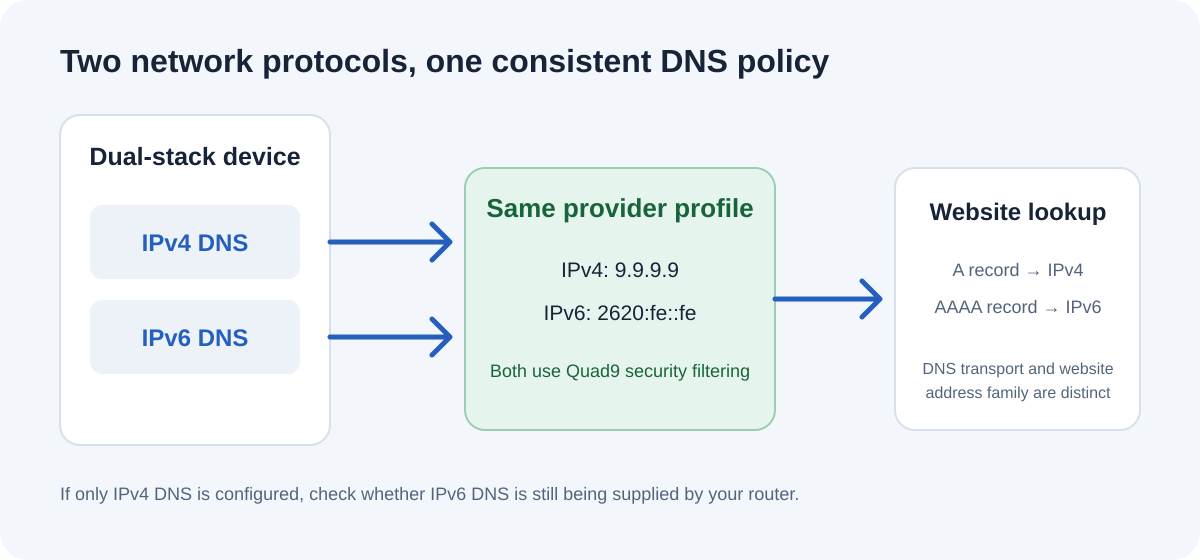
These are documented examples; confirm each provider's current endpoint and feature profile before applying them. Do not mix a filtering IPv4 profile with an unfiltered IPv6 profile.
Cloudflare: neutral DNS or optional filtering
Cloudflare's standard 1.1.1.1 service is an unfiltered recursive resolver. Its optional Families profiles use different addresses: 1.1.1.2 and 1.0.0.2 block malware; 1.1.1.3 and 1.0.0.3 add adult-content blocking. Cloudflare documents IPv6 equivalents and encryption options on its resolver address page and encryption page.
Pick standard Cloudflare if you want a neutral, well-known resolver and do not want DNS filtering. Pick the malware or family endpoint only if the corresponding policy fits your needs. Do not mix standard and filtered addresses as primary and secondary: whichever one the client uses can change the result.
Quad9: security-focused domain blocking
Quad9's recommended security service blocks known malicious domains and validates DNSSEC. Its documented IPv4 pair is 9.9.9.9 and 149.112.112.112; IPv6 addresses are 2620:fe::fe and 2620:fe::9. Its service page also documents the encrypted endpoints dns.quad9.net for DoT and https://dns.quad9.net/dns-query for DoH.
Quad9 is a strong first choice when blocking known malware, phishing, and similar threat domains is more important than getting neutral answers. If something legitimate stops resolving, check Quad9's status and the domain's reputation; temporarily testing with a neutral resolver can help isolate a false positive, but do not leave inconsistent resolver profiles mixed together.
Google Public DNS: neutral, general-purpose resolution
Google Public DNS uses 8.8.8.8 and 8.8.4.4 for IPv4, and documents 2001:4860:4860::8888 and 2001:4860:4860::8844 for IPv6. Its encrypted service uses the hostname dns.google and the DoH endpoint https://dns.google/dns-query.
Google is useful as a neutral comparison or a general-purpose alternative, not as a content filter. Google publishes its DNS-specific privacy and logging policy: it describes temporary logs that include IP addresses and query details and permanent aggregate logs. Read that policy if logging practices are part of your decision.
Cisco OpenDNS FamilyShield: a simple preset for families
OpenDNS FamilyShield's documented addresses are 208.67.222.123 and 208.67.220.123. Cisco's setup page also lists the standard OpenDNS addresses 208.67.222.222 and 208.67.220.220. FamilyShield is a preset filtering service; OpenDNS's account-based home filtering has different configuration and features.
FamilyShield is convenient if you want a simple preset on a home router without maintaining a custom category list. It is not a substitute for device-level parental controls: users can use another network, a VPN, or a browser-level resolver unless those paths are managed separately. Confirm the current OpenDNS terms and setup instructions before configuring.
CleanBrowsing: several distinct security and family profiles
CleanBrowsing publishes separate endpoints for its Security, Adult, and Family filters. The family IPv4 pair shown in its filter documentation is 185.228.168.168 and 185.228.168.169. The provider describes that policy as including adult-content blocks, SafeSearch enforcement, and malicious-domain blocks; it also publishes DoH and DoT options.
Choose CleanBrowsing when you want a clearly defined family or security profile. Because profiles differ, copy both addresses from the same profile rather than selecting a primary and secondary from separate tables. More restrictive filtering can produce more false positives or block mixed-content sites. Test the services your household needs before applying the profile network-wide.
AdGuard DNS: network-level ad and tracker filtering
AdGuard's default public profile blocks many ad, tracker, and phishing domains. Its provider documentation also describes Family Protection and Non-filtering profiles. The default IPv4 pair is 94.140.14.14 and 94.140.15.15; the encrypted standard hostname is dns.adguard-dns.com. Check AdGuard's current setup guide for exact family-profile addresses and device-specific configuration.
AdGuard DNS can reduce requests to domains on its blocklists, but it cannot reliably remove every ad: some ads share a hostname with the content a site needs. It can also break an app that depends on a blocked domain. Choose it if network-wide ad and tracker filtering is your goal and you are willing to troubleshoot occasional compatibility problems.
Which Resolver Fits Each Use Case?
Use the table as a starting point, then test on your own network:
- A neutral resolver with optional profiles: Cloudflare standard, or Google Public DNS if you prefer its service and policy.
- Known-malicious-domain blocking: Quad9's recommended security endpoint.
- A simple preset adult-content filter: OpenDNS FamilyShield or Cloudflare's family endpoint.
- A more explicit family filter policy: CleanBrowsing Family Filter; read its category behavior first.
- Ad and tracker domain filtering: AdGuard DNS default profile.
- A test of whether your ISP resolver is the issue: compare one neutral resolver from the same device and connection, then restore the setting you prefer.
- A work or school device: use the organization’s configured DNS unless its administrator authorizes a change. Internal domains and security controls may rely on it.
- A VPN user: check the VPN's DNS settings and leak-prevention documentation; the VPN may override the operating system.
If privacy is the priority, compare the actual DNS-specific privacy notices rather than relying on “fast,” “secure,” or “private” marketing labels. Consider where the operator is based, what query data is collected, how long it is retained, whether it is shared, and whether the service is independently audited. An encrypted resolver stops some local-network observers from reading DNS queries, but the selected resolver still processes them.
Why More DNS Servers Usually Do Not Make DNS Faster
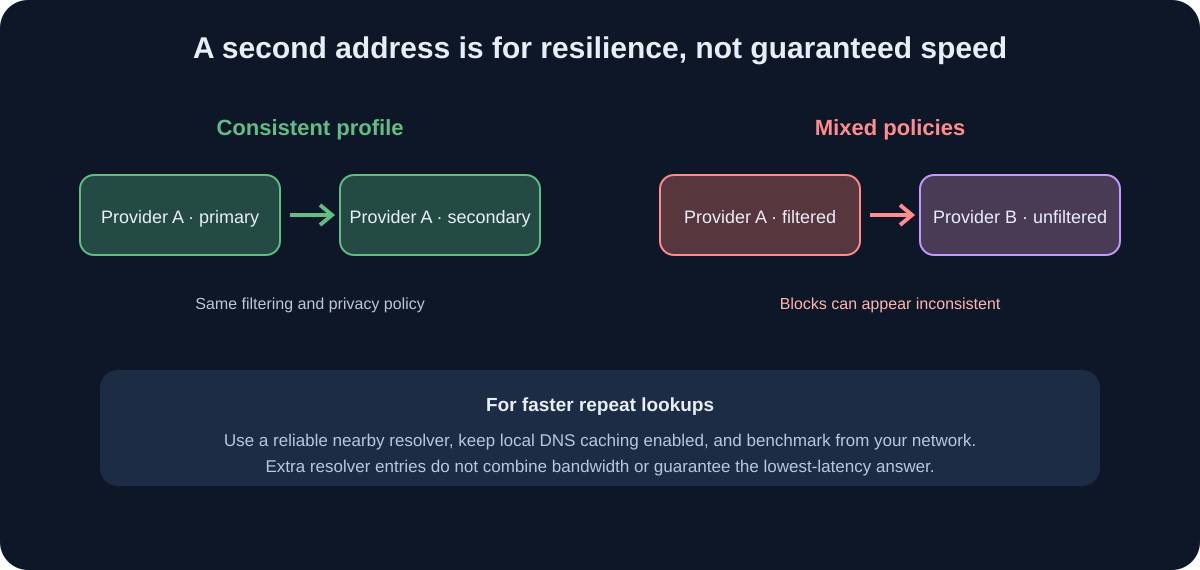
Adding several unrelated public resolvers does not combine their speed or capacity. A client has to decide where to send each query. Depending on the operating system, router, VPN, and application, it may prefer one address, retry another after a timeout, race multiple servers, or use another policy. There is no universal “primary always, secondary only if it fails” rule.
The secondary field is best treated as a resilience option. Use the other documented address from the same provider and same filtering profile. For example, pair Quad9's 9.9.9.9 with 149.112.112.112; do not pair filtered Quad9 with unfiltered Google and expect the filter to be consistent.
Mixing policies can cause confusing behavior: one lookup may be blocked while the next succeeds; a parental filter may appear to work on one device and not another; or a provider intended to filter threats may be bypassed when a client uses an alternate resolver. It can also send your queries to more companies than you intended.
What to do if you actually want faster lookups
- Start from a stable connection. Wi-Fi loss, a weak signal, overloaded router, or congested uplink has a much larger effect on page loads than small resolver timing differences.
- Choose a nearby, reliable provider. Public resolvers often use anycast, but routing varies by ISP and region.
- Keep local DNS caching enabled. Repeated lookups can be served from the device or router cache. Disabling caching can make repeated resolution slower.
- Avoid adding extra layers without a reason. A browser DoH provider, system resolver, VPN resolver, and router forwarder can make troubleshooting harder.
- Measure repeatedly. Compare from the same device, network, and time period, using a mix of fresh and repeated lookups. Do not compare one cached query with one uncached query and call it a provider benchmark.
- Pick the acceptable policy first. A few milliseconds are rarely worth sending your queries to a provider you do not trust or losing the filtering you want.
If you administer a network with specialized routing needs, a local caching resolver can make sense. That is a separate network design choice: configure its upstreams and failover behavior deliberately, monitor which upstream receives requests, and keep the privacy and filtering policy consistent. Do not assume that entering four IPs into a consumer device creates intelligent load balancing.
Browser DNS Versus System DNS
The operating system generally provides DNS to applications through a system resolver and cache. Browsers can add their own secure-DNS behavior. A browser using DoH may send its DNS queries directly to a selected provider instead of the resolver set in macOS, Windows, Linux, Android, iOS, or the router.
This can create two different answers on one device. For example, the operating system might use Quad9 filtering while a browser's secure DNS is configured to Google; the browser can resolve a site that other apps cannot. Conversely, a browser with a strict custom DoH provider may fail on a network that blocks that provider.
Browser secure DNS settings usually affect that browser only. System DNS settings affect most applications that use the OS resolver, but not necessarily applications with their own resolver, an active VPN, or a managed DNS policy. A router setting normally supplies a resolver to devices through DHCP; it does not necessarily override encrypted DNS selected inside an app.
| Platform | System-level DNS setting | Browser-level difference |
|---|---|---|
| macOS | Network service DNS servers, profiles, VPNs, or network extensions | Chrome and Firefox can have their own secure-DNS setting; Safari normally follows macOS networking and installed profiles |
| Windows | DNS servers and, on supported configurations, DNS encryption per network adapter | Chrome, Edge, and Firefox have separate secure-DNS controls and can use a provider different from Windows |
| Android | Private DNS hostname on Android 9+ encrypts system DNS with DoT | A browser can have separate secure-DNS behavior; check it if filtering or provider consistency matters |
| iPhone / iPad | Manual DNS is per Wi-Fi network; profiles or apps can configure encrypted DNS | Most browser apps use iOS networking; do not assume there is an Android-style per-app setting in Safari |
| Linux | NetworkManager, systemd-resolved, DHCP, or the distribution's network manager | Browser DoH may bypass the system resolver; exact defaults depend on the browser and distribution |
These are defaults, not guarantees. A VPN, work profile, parental-control product, or network extension can change the route. If a browser bypasses a router filter, decide whether that is intended; do not infer device-wide behavior from one browser test.
Chrome and Chromium-based browsers
Chrome's secure-DNS feature can use an automatic mode or a custom provider. Google's current help says automatic mode may fall back to unencrypted DNS if secure lookup has a problem; choosing a custom provider does not use that same fallback behavior. Managed devices or parental controls may disable the feature.
In Chrome, open Settings → Privacy and security → Security → Use secure DNS. The wording and available providers can differ by version and platform. If the goal is to use your system's selected resolver, leave the feature in its automatic/default mode and check what provider it chooses. If you choose a custom provider, understand that browser requests may bypass system- or router-level filtering.
Firefox
Firefox has its own DNS-over-HTTPS settings and protection modes. Its behavior may differ by country, network policy, and version, and it may use fallback behavior depending on the selected mode. Open Settings → Privacy & Security → DNS over HTTPS (the exact label may vary) and review the current provider and protection mode. Mozilla's live DNS-over-HTTPS support page explains current controls.
If your network relies on internal hostnames, parental controls, or a VPN's resolver, test Firefox after changing its DoH mode. An encrypted browser resolver can bypass a filter that only exists on the router.
Configure DNS on macOS
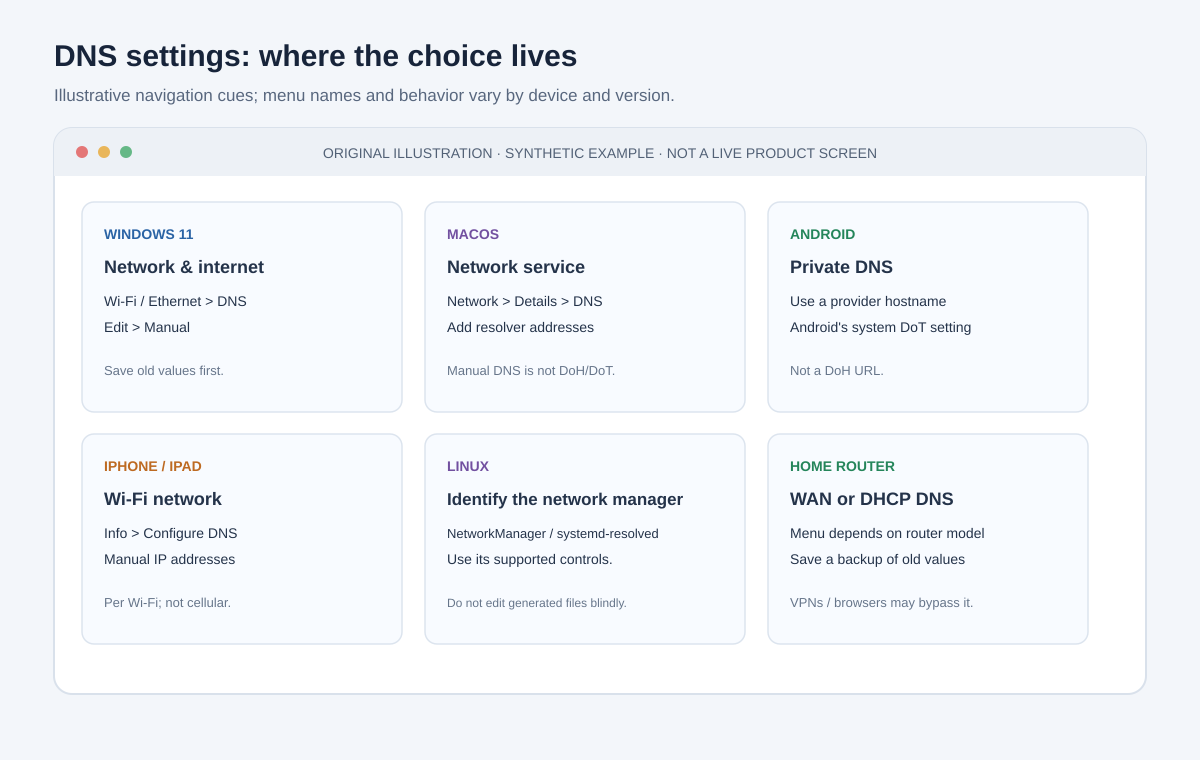
Original mock screens for orientation; they are not screenshots of current device interfaces. Follow the platform's live documentation for exact controls.
Menu path: Apple menu → System Settings → Network → active Wi-Fi or Ethernet service → Details → DNS.
To change DNS for one Mac network service:
- Open Apple menu → System Settings → Network.
- Select the active Wi-Fi or Ethernet service and choose Details.
- Open DNS.
- Save or record the existing values. Add the provider's matching IPv4 and IPv6 resolver addresses if the network supports both.
- Remove old addresses only if you intend to replace them; click OK to save.
- Reconnect or test a fresh lookup, then verify using the provider's own status/check page where available.
Apple documents the current steps in Change DNS settings on Mac. This manual list changes the network service's DNS server addresses; it does not by itself turn on DoH or DoT. For encrypted system DNS, a trusted configuration profile or app may be needed. Review who issued it, what it configures, and how to remove it before installation.
The setting is attached to a network service. A different Wi-Fi network, Ethernet adapter, VPN, or configuration profile can have different DNS. When you disconnect from a VPN, DNS behavior may change again.
Configure DNS on Windows 11
Menu path: Settings → Network & internet → Wi-Fi or Ethernet → DNS server assignment → Edit → Manual.
In Windows 11:
- Open Settings → Network & internet.
- Select the connected Wi-Fi network or Ethernet connection.
- Find DNS server assignment and choose Edit.
- Select Manual, enable IPv4, and enter the provider's primary and same-profile secondary IPv4 addresses.
- If the network supports IPv6 and the provider publishes the same filtering profile over IPv6, enable IPv6 and enter that profile's IPv6 pair too.
- If Windows offers DNS over HTTPS or DNS encryption for those addresses, choose Encrypted only when the provider is supported and you have tested connectivity. Use a fallback option only if you knowingly accept that some queries could revert to plaintext.
- Save the settings. In an elevated Command Prompt,
ipconfig /flushdnsclears the Windows DNS cache for testing.
Windows UI labels vary across updates and adapters. Microsoft's DoH documentation describes encrypted-only and fallback modes for the Windows DNS client; provider addresses must be recognized or configured for encryption to be available. A browser's own DoH setting can still override the OS setting for browser lookups.
To inspect configured DNS server addresses, run Get-DnsClientServerAddress in PowerShell. This shows interface configuration; it does not by itself prove which server a browser is using or that a query was encrypted.
Configure Private DNS on Android
Menu path: Settings → search for “Private DNS” → Private DNS provider hostname.
Android 9 and later includes Private DNS, which uses DNS over TLS with a provider hostname:
- Open Settings and search for Private DNS. The menu location differs by manufacturer.
- Choose Private DNS provider hostname rather than a numeric IP entry.
- Enter the hostname for a provider that supports DoT, such as
dns.quad9.netfor Quad9 ordns.googlefor Google Public DNS. Cloudflare documentsone.one.one.one; AdGuard documentsdns.adguard-dns.com. Confirm the provider's current hostname and policy before applying. - Save, reconnect, and test. If Android reports that the private DNS server cannot be reached, revert to Automatic while troubleshooting.
This Android setting encrypts DNS to the hostname you selected, but a VPN may route DNS through its own service or prevent Android Private DNS from being used. Managed profiles and manufacturer versions can also differ. Quad9 publishes Android setup instructions.
Do not enter a URL such as https://dns.quad9.net/dns-query into Android's Private DNS hostname field; Android expects a DoT hostname, not a DoH URL. DoH is typically configured in a compatible app, browser, VPN, or private-DNS application.
Configure DNS on iPhone and iPad
Menu path: Settings → Wi-Fi → ⓘ beside the connected network → Configure DNS → Manual.
For a manual resolver on a single Wi-Fi network:
- Open Settings → Wi-Fi.
- Tap the ⓘ next to the connected network.
- Select Configure DNS → Manual.
- Record existing values, remove entries only if replacing them, and add the provider's IPv4 addresses. Add IPv6 addresses if the provider documents them and your network supports IPv6.
- Tap Save, reconnect, and test.
This per-network manual configuration uses resolver IP addresses and does not automatically mean queries are encrypted. It also does not configure cellular DNS or every Wi-Fi network you join. Switching back to Automatic restores DNS supplied by that network's DHCP service.
For encrypted DNS across networks, use a reputable provider's signed DNS configuration profile or a provider app that explains its network extension/VPN behavior. Check who created the profile, what it configures, and how to remove it. Only install profiles from providers and sources you trust. Apple explains recommended router and Wi-Fi security settings in its Wi-Fi router and access point recommendations; provider-specific profile setup should be followed from that provider's current documentation.
An active VPN or mobile-device-management profile can change or prohibit DNS settings. If a work or school device is managed, ask its administrator before changing them.
Configure DNS on Linux
Linux DNS is managed differently across distributions. A desktop may use NetworkManager, systemd-resolved, systemd-networkd, resolvconf, DHCP client scripts, or a combination. First identify what manages your connection instead of editing /etc/resolv.conf blindly; that file is often generated and may be overwritten.
NetworkManager desktop
On GNOME or another NetworkManager desktop, open Settings → Network → Wi-Fi/Ethernet → gear icon → IPv4. Change DNS from Automatic to manual (or disable automatic DNS, depending on the desktop), enter the provider's addresses, and save. Repeat for IPv6 if supported. Reconnect and inspect the active configuration.
If using nmcli, first identify the connection name:
nmcli connection show --active
Then replace Home Wi-Fi with the exact connection name shown. This example configures Quad9 for both address families:
sudo nmcli connection modify "Home Wi-Fi" \
  ipv4.ignore-auto-dns yes \
  ipv4.dns "9.9.9.9 149.112.112.112" \
  ipv6.ignore-auto-dns yes \
  ipv6.dns "2620:fe::fe 2620:fe::9"
sudo nmcli connection up "Home Wi-Fi"
Reactivating a connection can briefly interrupt networking. Keep local or console access available if you are configuring a remote machine. To restore DHCP-provided DNS for that connection, set ipv4.ignore-auto-dns no and ipv6.ignore-auto-dns no, clear the custom DNS lists, and reactivate it. If your network uses internal DNS for work, VPN, or local devices, do not replace those servers without understanding the impact.
systemd-resolved
Check whether systemd-resolved is active with:
resolvectl status
For a temporary per-interface test, resolvectl dns INTERFACE 9.9.9.9 149.112.112.112 assigns DNS servers to that link until another network manager changes it or the connection is restarted. Replace INTERFACE with the interface shown by resolvectl status; configuration ownership can vary by distribution.
For persistent encrypted DNS, use your distribution's supported systemd-resolved or NetworkManager configuration. Recent systemd-resolved versions support DNS over TLS and server-name authentication, but configuration syntax and version support matter. Read the current resolved.conf documentation and your distribution's guidance; do not turn on opportunistic encryption and assume it prevents downgrade or plaintext fallback.
Configure DNS on a Home Router
Router-level DNS is convenient because devices commonly receive the router's resolver configuration through DHCP. It can cover consoles, TVs, and devices without a convenient DNS menu—but it may not cover browsers using custom DoH, VPNs, mobile data, or devices with manually configured DNS.
- Sign in to the router's local administration interface using its official app or documented address.
- Record the current WAN/Internet DNS and DHCP settings so you can roll back.
- Find the router's Internet/WAN DNS or DNS forwarding settings. Some routers separate upstream DNS (router-to-provider) from DHCP DNS (what clients are told to use).
- Enter the matching primary and secondary addresses from one provider profile. Configure IPv6 DNS too if the router and provider support it.
- Save, reconnect one test device, and verify it uses the intended resolver.
- Check a browser's secure-DNS setting and any VPN clients; they may use a different resolver.
- If anything important stops working, restore the saved settings or switch back to automatic DNS.
Some ISP gateways lock DNS settings or rely on provider-specific services. Do not disable the router's DHCP or DNS proxy unless you know what will replace it. A router's forwarding feature may also change how a provider sees client addresses and how local names resolve.
How to Verify Your DNS Setup
Do not rely on one generic “DNS leak test” as proof of every device's behavior. First check the configured setting, then query the real application and use a provider-specific status page if available.
Useful checks include:
- Windows:
Get-DnsClientServerAddressto inspect configured interface addresses;ipconfig /flushdnsto clear cache during troubleshooting. - macOS:
scutil --dnsto inspect resolver configuration. - Linux with systemd-resolved:
resolvectl statusandresolvectl query example.com. - Command-line DNS query:
nslookup example.comordig example.com; note that a local stub such as127.0.0.53can appear as the immediate server, while the actual upstream is shown by the OS resolver status. - Quad9: visit on.quad9.net for its service check.
- Cloudflare: visit 1.1.1.1/help for its resolver check.
For browser-specific testing, check the browser's secure-DNS setting too. A system command does not prove the browser used the same resolver. A successful lookup also does not necessarily prove DoH or DoT was active; use the OS or provider's secure-connection status where available.
Test more than a popular website. Check an internal hostname you need, a commonly used app, and any family-filtered category you intentionally selected. If a site is blocked unexpectedly, compare the provider's documented policy and status before concluding your device is broken.
Troubleshooting Common Problems
A site stops opening after switching DNS. Clear the local cache, reconnect, and check whether the provider filters the domain. Test with the provider's unfiltered profile briefly to isolate a filtering issue, then restore the intended policy. Also check VPN and browser DoH settings.
Only one browser behaves differently. It may use its own DoH resolver. Compare browser Secure DNS/DoH settings with the OS settings. If you want consistent system or family filtering, configure the browser deliberately and verify that it does not bypass the chosen resolver.
The internet says “connected” but domains do not load. Restore automatic DNS or the previous values to regain access. Then verify the address pair, IPv6 configuration, Android DoT hostname, and any VPN or network restrictions. A typo in IPv6 or a provider hostname can cause resolution failure.
Family filtering works on Wi-Fi but not everywhere. The filter may be set only on the router; mobile data, a different Wi-Fi network, a VPN, or browser DoH may use another resolver. DNS filtering is not tamper-proof, and it does not replace age-appropriate device supervision.
A VPN changes the test result. Many VPN clients intentionally route DNS through their own resolver to prevent leaks or resolve private service names. Configure custom DNS only if the VPN explicitly supports it and its documentation says doing so is safe for your use case.
A work domain or printer stops resolving. Restore the organization/router DNS or configure a split-DNS setup with an administrator. A public resolver cannot resolve private hostnames that exist only on a company or home network.
A new DNS provider does not improve page speed. That is normal. DNS accounts for only part of the page-load path. Latency may be similar; repeat lookups may use cache; and downloads are governed by connection throughput, server performance, and Wi-Fi quality. Revert if the new choice adds friction without a benefit you value.
A Sensible Default Setup
For an individual device, start with one provider that fits your filtering preference. If you want a neutral resolver, use a neutral profile such as Cloudflare standard or Google Public DNS. If you want threat-domain blocking, consider Quad9's security profile. For family filtering, compare Cloudflare Families, OpenDNS FamilyShield, and CleanBrowsing. For ad/tracker-domain filtering, consider AdGuard DNS and expect some compatibility trade-offs.
Configure two addresses from that same profile at the level you intend to control. Use DoH or DoT when the device/provider supports it and the encrypted mode is compatible with your network. Check the browser separately, especially when using custom secure DNS. Keep a note of the previous values and a rollback path.
For a household, router configuration can provide a simple baseline, but do not assume every client obeys it. Test a laptop, phone, and browser; review VPN settings; and choose device-level controls for users who must not bypass filtering. For work or school networks, follow the administrator's configuration.
DNS is one small layer in a wider security setup. Keep the operating system and browser updated, use HTTPS, use unique passwords and multifactor authentication, and keep backups. A resolver can help with name resolution and some filtering; it cannot replace these controls.
Using DNS Filtering for Children and Older Adults
DNS filtering can be a useful household safety layer, but it is a domain blocklist—not a judgment about every page or message. Choose the policy for the person using the device:
- For children: a family profile can block many known adult-content domains and may enforce SafeSearch. Choose an age-appropriate device parental-control tool as well; DNS alone cannot reliably enforce screen-time rules, app limits, or content controls inside every app.
- For older adults and anyone targeted by scams: a security profile such as Quad9 or a family/security profile that blocks known malware and phishing domains can prevent some connections to listed threats. Explain how to pause and verify unexpected requests for money, passwords, or one-time codes, even when a message looks familiar.
- For a shared household: configure a consistent profile at the router if appropriate, then check each device and browser. A user can otherwise get different results through mobile data, a VPN, another Wi-Fi network, or custom browser secure DNS.
Some providers also offer a family profile that includes malware blocking. Compare the policy before enabling it: broader categories can block legitimate sites, and a DNS service may offer less control than a dedicated family-safety product. Keep the provider's recovery/contact details available and know how to restore the previous settings if an essential site is blocked.
DNS filtering has important limits. It only acts on domain lookups that reach that resolver and domains on its lists. It may miss brand-new scam sites, links hosted on legitimate services, compromised websites, harmful content on an otherwise allowed site, and scam calls or messages. It cannot tell whether a person is being manipulated into paying a fraudster. Browser Safe Browsing, operating-system updates, multifactor authentication, device-level parental controls, and a calm way to check suspicious messages are complementary protections—not optional guarantees.
For children, discuss online risks and use supervision appropriate to their age rather than relying on a hidden network setting. For older adults, agree on a simple verification routine (for example, independently calling a known contact or organization number) and make sure they know how to ask for help without blame.
Provider and Platform Documentation
Provider addresses, filtering policies, privacy practices, and operating-system menus change. These official pages are the source of truth when configuring the service:
- Cloudflare 1.1.1.1 addresses and encryption options
- Google Public DNS configuration, DoT, and privacy policy
- Quad9 service addresses and features and setup guides
- OpenDNS setup guide
- CleanBrowsing filter descriptions
- AdGuard public DNS provider guide
- Apple: change DNS settings on Mac
- Microsoft: configure DNS over HTTPS
- systemd-resolved configuration reference
- Chrome secure DNS help and Mozilla DNS-over-HTTPS help
The key is consistency: know which layer is sending queries, choose a resolver whose policy you understand, encrypt the connection when practical, and verify the actual device and app after changing settings.